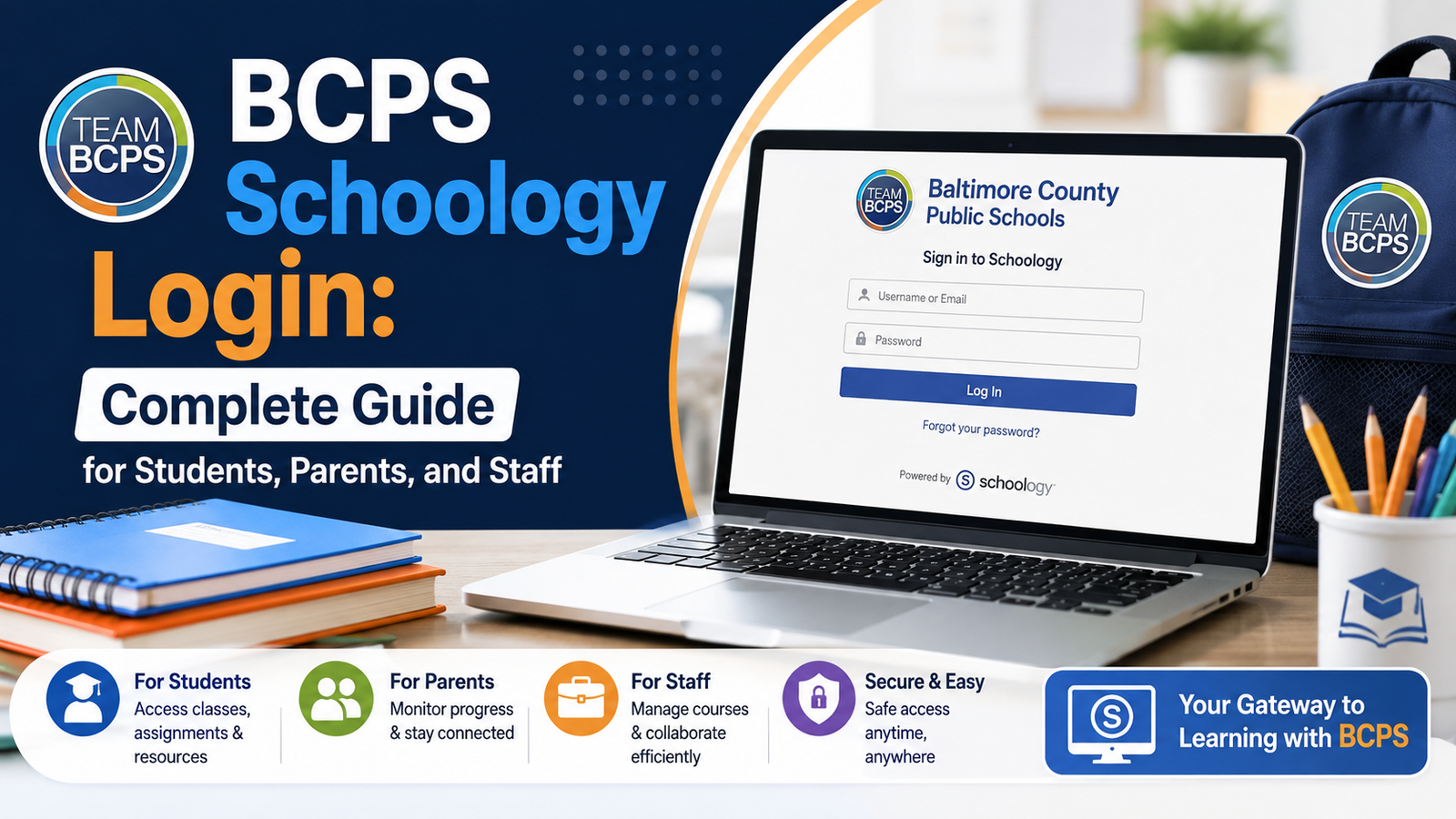
BCPS Schoology is the official online learning management system used by Baltimore County Public Schools, giving students, parents, and teachers one central place to access courses, assignments, and grades.
Picture never scrambling to find a missing assignment or wondering about a grade again — that’s exactly what a smooth Schoology login unlocks for BCPS families every single day.
Beyond the basics, BCPS Schoology connects seamlessly with BCPS One, creating a single, secure gateway for over 111,000 students across 176 schools. Mastering this login process saves time, reduces frustration, and keeps every family effortlessly informed.
What Is BCPS Schoology?
Schoology is the learning management system, or LMS, that Baltimore County Public Schools uses to run day-to-day classroom activity online. Think of it as the digital hub where a class actually happens outside the physical classroom: teachers post assignments there, students submit work there, and grades show up there before they hit any report card.
BCPS is one of the larger school districts in Maryland, serving over 111,000 students across 176 schools. A district that size needs a single, consistent digital classroom platform, and Schoology is that platform. It’s not exclusive to BCPS, either — plenty of districts nationwide use Schoology, which is part of why the interface might look familiar if you’ve moved from another school system.
Inside Schoology, you’ll typically find:
- Course pages for every class a student is enrolled in
- Assignments and due dates, often with file upload options built right in
- Grades, updated as teachers post them (not just at report card time)
- Messaging tools so students and parents can reach teachers directly
- Calendars that pull together due dates across every class at once
- Announcements from teachers or the school itself
What Schoology is not, though, is a standalone account system. And that’s the detail that trips up more people than anything else on this list.
How BCPS Schoology Login Actually Works
Here’s the part that surprises a lot of new families: there’s no separate Schoology username or password for BCPS users. Access runs entirely through BCPS One, the district’s central portal. If you try to create a fresh account directly on Schoology’s site, it won’t connect to anything BCPS-related. You have to come in through the front door.
Step-by-Step BCPS Schoology Login Instructions
- Go to bcpsone.bcps.org. This is the starting point every single time, whether you’re a student, a parent, or staff.
- Click “LOGIN to BCPS ONE.” You’ll land on a standard login screen.
- Enter your myBCPS username and password. This is your myBCPS account, the same credentials used for other district systems.
- Click the Schoology tile. Once you’re inside BCPS One, you’ll see a dashboard of tiles. The Schoology Learning Management System tile sits in the top-left corner. Clicking it drops you straight into Schoology, already logged in.
That’s it — four steps, no separate password to remember. The tricky part isn’t the process itself; it’s knowing that the process exists in the first place. If someone bookmarks Schoology’s login page directly instead of BCPS One, they’ll wander in circles.
Quick tip: Bookmark bcpsone.bcps.org, not any Schoology-branded URL. That one link gets you to everything, including Schoology.
Why BCPS Structures Login This Way
It might seem like an extra step, but there’s a real reason behind it. Routing Schoology access through a single student information system means BCPS only has to manage one set of credentials per person, not five. Your myBCPS login also connects to other tools, so updating a password once updates it everywhere instead of forcing separate resets across a handful of platforms. It’s more secure, and honestly, once you know the pattern, it’s fewer things to remember, not more.
BCPS Schoology Features for Students
Once a student logs in, Schoology becomes the daily home base for schoolwork. Here’s what that looks like in practice.
Accessing Classes and Learning Materials
Every enrolled course shows up on the student’s Schoology homepage as its own card or folder. Clicking into a course reveals whatever the teacher has organized there — reading materials, slideshows, video links, discussion boards, you name it. Teachers vary in how they structure this (some are meticulous folder-organizers, others post more loosely), but the core idea stays the same: it’s a running archive of everything covered in that class, searchable long after the lesson ends.
This matters more than it might seem. A student who’s out sick for two days doesn’t have to rely on a friend’s notes; the material is sitting right there, dated and organized.
Completing Assignments
Assignments in Schoology usually include a due date, instructions, and an upload option, all on one page. Students can typically:
- Upload documents, images, or other files directly
- Type responses into a text box for short-answer work
- Submit links (useful for shared docs or outside projects)
- See a countdown or due-date flag so nothing sneaks up unnoticed
Once submitted, the assignment usually shows a status update — submitted, late, or graded — so there’s no guessing about whether it actually went through.
Viewing Grades and Feedback
This is the section most students check first, and for good reason. Schoology’s gradebook updates as teachers enter scores, which means grades aren’t a mystery until report cards arrive. Beyond the raw number, many teachers leave written feedback attached to individual assignments, which is genuinely more useful than a grade alone — it tells a student why they lost points, not just that they did.
| Feature | What It Does |
|---|---|
| Assignment grade | Shows the score once a teacher grades the work |
| Written feedback | Teacher comments attached to a specific submission |
| Grade breakdown | Category-level view (tests, homework, participation, etc.) |
| Overall course grade | Running average based on graded work so far |
BCPS Schoology Parent Access
Parents get their own path into Schoology, and BCPS is fairly specific about how it wants that path set up. The short version: don’t just borrow your kid’s login. Set up your own.
Why a Separate Parent Account Matters
BCPS explicitly recommends that parents create and use their own myBCPS account rather than logging in with a student’s credentials. It sounds like a small distinction, but it changes what you can actually do. A parent account connected properly through BCPS One gives you a parent-level view — access to your child’s courses, grades, and teacher communication — without you needing to know or manage your kid’s personal login at all. It also means multiple guardians can each have independent access, instead of everyone sharing one set of credentials.
Connecting a Parent Account
Getting a parent account linked to a student happens through BCPS One, not through Schoology itself. The child connection step is what actually ties your account to your student’s record, and until that connection exists, Schoology has nothing to show you.
Here’s the general flow:
- Create or log into your own myBCPS parent account through BCPS One.
- Complete the parent-student connection process within BCPS One (this typically requires verification information tied to your child’s enrollment).
- Once connected, click the Schoology tile from your BCPS One dashboard — the same way a student would.
- Your Schoology view will now show your connected child’s information.
What Parents Can See
Once the connection is live, a parent account inside Schoology typically shows:
- Course lists for each connected child
- Grades and feedback, in real time as teachers post them
- Assignment due dates and completion status
- A direct line to message teachers
Managing Multiple Children
Families with more than one child in BCPS don’t need a separate login for each kid. Instead, Schoology includes a My Children menu option that lets a parent toggle between connected students from a single account. Click the menu, pick the child, and the dashboard switches to show that student’s classes and grades. It’s a small feature, but for families juggling three different school schedules, it saves a genuine amount of friction.
How to View Grades in BCPS Schoology
Grade-checking is probably the single most common reason anyone opens Schoology, so it’s worth breaking down clearly for both students and parents.
For a student, grades live inside each individual course page, usually under a “Grades” tab. There’s also often a consolidated grades view accessible from the main navigation menu, showing every class at once rather than requiring a click into each one separately.
For a parent, the process is nearly identical, just filtered through whichever child is currently selected in the My Children menu. The same grade breakdown — assignment-level detail plus an overall course average — is visible.
A few things worth knowing about how Schoology grades actually behave:
- Grades update live. There’s no fixed “grade day.” A teacher entering a score at 9 PM on a Tuesday means that score is visible immediately.
- Not every assignment is graded the same day it’s submitted. Turnaround time depends entirely on the teacher and the type of assignment.
- Category weighting affects the overall grade. A single low homework score won’t tank an overall average the way a major test grade might, depending on how the teacher has weighted each category.
If a grade in Schoology doesn’t seem to match a report card or a separate portal, it’s usually a timing issue — Schoology reflects live classroom entries, while other systems may sync on a different schedule.
Using BCPS Schoology on Mobile Devices
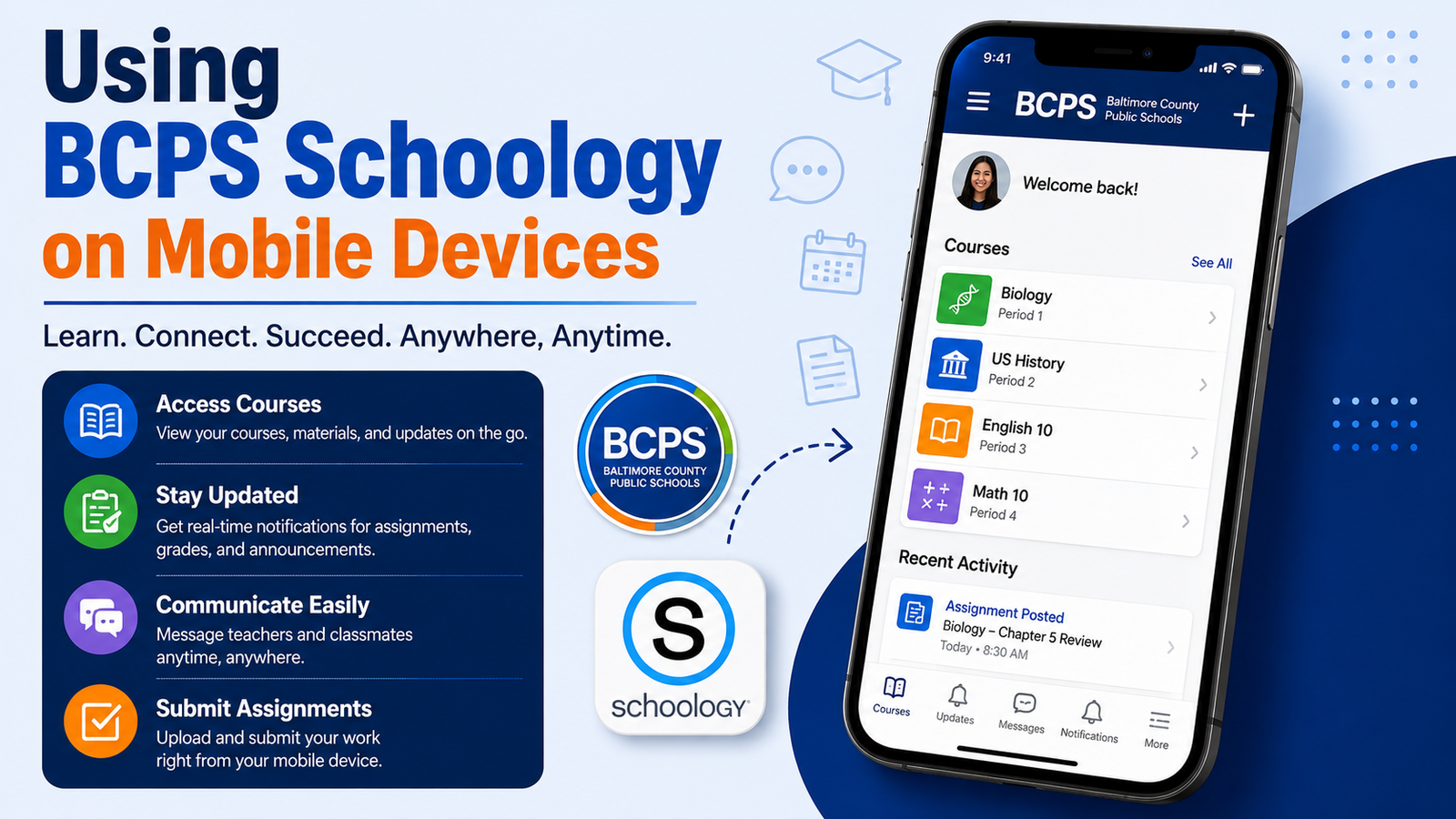
Schoology has a dedicated mobile app, available for both iOS and Android, and it’s genuinely useful for anyone who wants a quick grade check without opening a laptop.
Setting Up the Mobile App
- Download Schoology from the App Store (iOS) or Google Play Store (Android).
- Open the app and look for a “Through Your School” option, then tap Continue.
- Search for Baltimore County Public Schools. You’ll usually see a few similarly named options — select the one marked with a green dot, which confirms it’s the actively supported district connection.
- Log in using the same BCPS One credentials used on desktop. There’s no separate mobile-only login.
Mobile Features Include
The mobile app isn’t a stripped-down version of the desktop site — most of the core functionality carries over:
- Push notifications for new grades, assignments, or teacher messages
- Grade checking from the app’s menu icon, without needing to load a full course page
- Assignment submission, including photo uploads straight from a phone camera
- Direct messaging with teachers
- Calendar view for upcoming due dates across all classes
- My Children switching for parents managing multiple students, same as on desktop
Mobile vs. Desktop: What’s Different
| Feature | Desktop | Mobile App |
|---|---|---|
| Full course material browsing | Yes, complete folder structure | Slightly condensed navigation |
| Assignment submission | Yes | Yes, plus camera photo upload |
| Grade viewing | Full breakdown | Full breakdown, fewer clicks |
| Push notifications | No | Yes |
| Ideal for | Longer assignments, typing | Quick checks, on-the-go updates |
For quick, daily use — checking whether a grade posted, confirming a due date — the app is often faster than logging into a browser. For actually writing and submitting longer assignments, most students still prefer a full keyboard and screen.
Common BCPS Schoology Login Problems
Login issues happen, and almost all of them trace back to one of a handful of causes. Here’s how to work through the most common Schoology login problems.
Incorrect Username or Password
This is, by far, the most frequent issue. Because BCPS Schoology login runs through your myBCPS account, an incorrect password here isn’t a Schoology problem at all — it’s a BCPS One problem. That distinction matters because it tells you where to actually go for a fix.
What to do:
- Reset your password through BCPS One directly, not through any Schoology-branded page.
- Double-check you’re using the correct username format (students and staff often have specific formatting conventions set by the district).
- If a reset link doesn’t arrive, check spam folders before assuming something’s broken.
Website or App Not Working
Sometimes the issue isn’t credentials at all — it’s the platform itself having a rough moment. Login errors that show up as blank pages, spinning loaders, or generic error messages are usually temporary.
A quick troubleshooting order that solves most of these:
- Refresh the page or fully close and reopen the app.
- Clear browser cache, or in the app, log out and back in.
- Try a different browser or device to rule out a local issue.
- Check whether the problem is happening app-wide (a quick search often reveals a known outage) versus isolated to one device.
Courses or Assignments Are Missing
A student logs in, and a class they know they’re enrolled in simply isn’t there. This one’s less about login mechanics and more about enrollment syncing. Schoology pulls course enrollment data from the district’s student information system, and occasionally that sync lags behind a schedule change — a recent class switch, a late enrollment, or a scheduling correction that hasn’t fully propagated yet.
If a course is missing:
- Give it 24 hours if the enrollment change was recent — syncing isn’t always instant.
- Confirm with the school’s front office that the schedule is actually correct on their end.
- If it’s still missing after a day or two, contact the school directly rather than troubleshooting further on the tech side, since this usually isn’t a login issue at all.
Parent Account Not Showing a Student
For parents specifically, this is its own category of trouble, separate from a general login error. If you can log into BCPS One just fine but Schoology shows nothing for your child, the child connection step likely didn’t complete. Revisit the parent-student connection process inside BCPS One — this is almost always the culprit rather than anything wrong with Schoology itself.
Understanding BCPS Digital Platforms
One of the most common sources of confusion isn’t Schoology at all — it’s figuring out which BCPS system does what. BCPS runs several connected platforms, and they get mixed up constantly. Here’s how they actually break down.
BCPS One
BCPS One is the front door. It’s the portal you log into first, and from there, tiles branch out to other systems — Schoology included. If you’re trying to remember one URL, this is it: bcpsone.bcps.org.
Schoology
Schoology is the actual learning management system, the place where classroom content, assignments, and grades live. You never log into Schoology directly with a separate account; it’s accessed through the BCPS One tile.
Focus Parent Portal
The Focus portal is a different tool entirely, generally tied to enrollment and broader student records rather than daily classroom work. Parents beginning the enrollment process for a new student typically start here, not in Schoology. It’s easy to confuse the two because both involve logging in with district credentials, but Focus and Schoology serve different purposes — one handles enrollment and administrative records, the other handles the day-to-day academic content.
Quick Comparison
| Platform | Main Purpose | Who Uses It |
|---|---|---|
| BCPS One | Central login portal / hub | Everyone — students, parents, staff |
| Schoology | Classroom content, assignments, grades | Students, parents, teachers |
| Focus Portal | Enrollment, student records | Primarily parents/guardians |
Understanding this layout solves most of the “why can’t I log in” confusion before it starts. If someone’s looking for grades, they want Schoology (via BCPS One). If someone’s enrolling a new student, they want Focus. If someone doesn’t know which one they need, BCPS One is always the correct starting point.
BCPS Schoology Support
When troubleshooting doesn’t resolve things, BCPS has actual support channels rather than leaving families to guess.
- Office of Digital Safety, Educational Technology & Library Media — the district office responsible for these platforms and the documentation behind them.
- School-level technology contacts — most individual schools have a designated tech contact or front office staff who can escalate account-specific issues faster than a general district line.
- The “Learn About Schoology” page — accessible directly from the BCPS One dashboard, this offers platform-specific guidance beyond general login troubleshooting.
For account-specific problems — a missing course, a connection issue, a password that won’t reset — going through your child’s school directly is usually faster than a general help line, since school staff can see enrollment and account details a general support contact can’t.
A Quick Look: Why This System Trips People Up
It’s worth pausing on why the BCPS Schoology login process causes so much confusion in the first place, because the answer isn’t really about the technology — it’s about expectations. Most people are used to logging into an app directly: open Instagram, type a password, done. Schoology doesn’t work that way for BCPS families, and that single-step assumption is where most frustration starts.
One BCPS parent, describing the setup to a school tech contact, put it simply: “I kept typing my password into Schoology’s own site and nothing happened — turns out I was supposed to never even be there.” That’s the whole issue in one sentence. The fix isn’t more troubleshooting. It’s redirecting the habit: BCPS One first, always.
This is also why the district leans so heavily on BCPS One as a single access point rather than letting Schoology run its own accounts. A student information system that centralizes login credentials means fewer passwords to track, fewer support tickets for password resets scattered across five different platforms, and a cleaner way to manage enrollment, connections, and permissions from one place. For a public school system the size of BCPS, that consistency isn’t a small convenience — it’s what keeps the help desk from drowning in duplicate account issues every September.
BCPS Staff Access to Schoology
Teachers and other BCPS staff log in through the exact same BCPS One gateway students and parents use — there’s no separate staff-only portal for Schoology itself. The difference shows up after login, in what the account can actually do.
Once inside, staff accounts typically have permissions to:
- Build and organize course pages, including folders, materials, and unit structure
- Create assignments, set due dates, and attach grading rubrics
- Enter and adjust grades, including bulk grading tools for larger classes
- Message students and parents directly through the platform
- Post announcements visible to an entire course or section
- Track completion, seeing at a glance who has and hasn’t submitted a given assignment
Because grading and course content are entered directly by teachers, the accuracy and speed of what students and parents see in Schoology depends heavily on how actively an individual teacher uses the platform. Some post materials and grades within a day or two of a lesson; others batch updates weekly. That variation is normal, and it’s worth keeping in mind before assuming a “missing” grade is a technical problem rather than simply pending.
For login issues specific to staff accounts — access to a course that isn’t showing correctly, or permissions that seem off after a schedule or assignment change — the right first stop is the school’s administrative office or IT contact, since staff-level account permissions are typically managed at that level rather than through general troubleshooting steps.
FAQs
1. What is the official BCPS Schoology login link?
Students, parents, and staff log in at bcpsone.bcps.org and select the Schoology tile. You can also go directly to bcps.schoology.com, which uses the same BCPS One single sign-on.
2. Do parents need a separate Schoology account?
Yes, BCPS recommends parents create their own myBCPS guardian account rather than use a student’s login, then connect it to their child through BCPS One.
3. Why is my BCPS Schoology login not working?
This is almost always a BCPS One credential issue, not a Schoology problem — reset your password through BCPS One directly.
4. Can I access BCPS Schoology on my phone?
Yes, the Schoology mobile app is available for iOS and Android and uses the same BCPS One login as the desktop site.
5. Is Schoology the same as the Focus Parent Portal?
No, Focus handles student enrollment and records, while Schoology is used for daily coursework, assignments, and grades.
conclusion
Logging in to BCPS Schoology doesn’t have to feel confusing. Just remember one simple rule: start at BCPS One, then click the Schoology tile. That’s the whole process. Once you know this step, checking grades or homework takes seconds, not stress.
Whether you’re a student, a parent, or a teacher, BCPS Schoology keeps everyone connected. Grades update fast. Messages reach teachers instantly. Problems get solved quickly, too. With the right login habits in place, staying on top of schoolwork becomes easy, every single day.







1 thought on “BCPS Schoology Login: Complete Guide for Students, Parents, and Staff”